
Casino Lux Mobile App: APK, QR Code and iOS Add to Home Screen
You don't need to search the App Store or Google Play to reach Casino Lux from your phone. The platform offers two routes instead of an official store listing. On Android, you download an APK file using a QR code. On iOS, you create a web shortcut through Safari. This page walks through both methods and the differences between them.
Why Is There No Official App Store or Google Play Listing?
So why can't I find the app in a store? — Casino Lux does not publish an official listing on the App Store or Google Play. Instead, the download page points directly to the APK file and the iOS shortcut steps.
Is that a mistake? — No, it's the current distribution method. Without a store listing, you can still reach your account from a mobile browser. You can install the APK. You can add the iOS shortcut too. All three methods connect to the same account.
Which of the three should I pick? — That depends on your device and preference. Android users tend to prefer the APK install, since the icon stays on the home screen afterward. iOS users have one option: the shortcut method, because there is no official App Store release. Signing in through a mobile browser works on either device without an extra step.
Browser Access Without Installing Anything
You can sign in straight from a mobile browser without installing the APK or adding the iOS shortcut. The platform's web version is a responsive single-page application (SPA). Because of that, game categories, bonus sections and menu structure look the same as on desktop. This route downloads no file. It also uses no extra storage on your device. Game tiles may load a little slower on a weak connection, and that can happen after the APK or shortcut install as well.
Whichever route you use, your IP address is logged. Your browser details are logged automatically too. One user can only open a single account. This rule applies the same way whether you register from a mobile browser, the APK, or the iOS shortcut.
Installing on Android: APK and QR Code
The Android download page is headed "Just scan the QR code!" You scan it with your phone's camera, and it opens the APK download link. Setup runs through five steps:
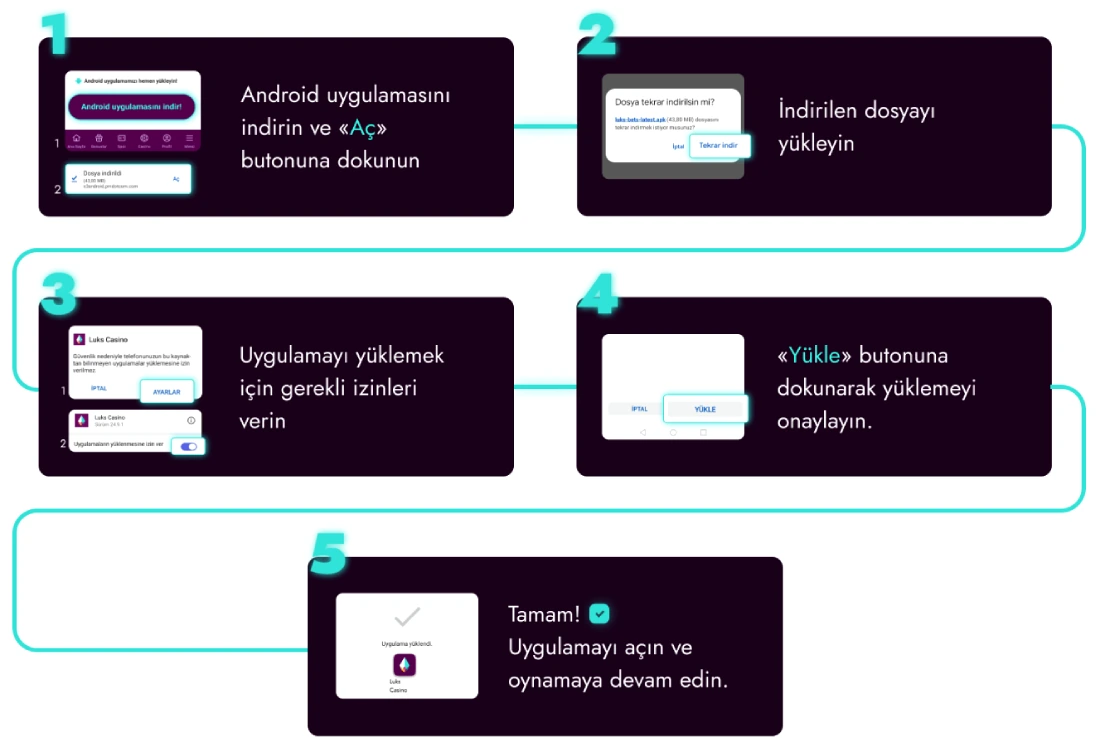
- Scan the QR code, download the Android app, then tap "Open" once the download finishes.
- If the file didn't fully download, try again.
- Approve the permission your device asks for to install apps from unknown sources.
- Tap "Install" to complete the setup.
- Open the app and sign in to keep playing.
The file details shown on the download page are summarised in the table below. It helps set expectations before you install:
| Detail | Value |
|---|---|
| Distribution method | APK file, downloaded via QR code. |
| File size | Roughly 43 MB. |
| Signing subdomain | A subdomain separate from the main site. |
| Source | Sideload outside the store; not through Google Play. |
| Permission needed | Install from unknown sources. |
| Setup steps | Five steps. |
Once installed, the app icon sits on your home screen with your other Android apps. You sign in with the same account details you already use.
Installing on iOS: Add to Home Screen in Safari
iPhone users don't get a separate App Store app. Instead, a web shortcut (PWA) is created through Safari. Here are the steps:
- Open the Casino Lux page in Safari and tap the Share icon at the bottom of the screen.
- Choose "Add to Home Screen" from the menu that opens.
- Tap "Add" in the top-right corner.
- A Casino Lux icon now appears on your home screen as a web shortcut.
Tapping that shortcut opens the platform in a full-screen web view. You sign in the same way you would through a regular browser tab; no separate install file is downloaded.
Android APK vs. the iOS Shortcut
Both routes give you mobile access without a store listing, but they work differently under the hood. The table below compares the main differences:
| Detail | Android (APK) | iOS (Add to Home Screen) |
|---|---|---|
| Distribution source | Install file downloaded via QR code. | Web shortcut created in Safari. |
| Install file | Yes, saved to the device. | No, a browser tab turns into the shortcut. |
| Permission needed | Install from unknown sources. | No extra permission required. |
| Updates | May require downloading the file again for a new version. | Page content updates automatically through the browser. |
Whichever device you use, you connect with the details from the login page. If you're new, complete registration first.
Casino and Sports Betting on Mobile
Casino Lux brings casino games and sports betting together on one platform. Mobile access covers both sides. Signing in through the APK, the iOS shortcut, or a mobile browser takes you to the casino lobby. You can move to the live betting section from the same account. You don't need a separate sports app. You don't need a separate casino app either. The menu structure and category split stay the same as on desktop.
Bonuses Available Only on Mobile
Does mobile access come with any extra perk? — Yes, the 77 FS Gates of Olympus 1000 reward is only available through the mobile app. It's tied to the seasonal "YAZ SAHİLİ" campaign as well.
Can I claim this on desktop? — No, this offer is defined as mobile-only. Other campaigns, such as Deneme Bonusu or the offers in the Bonuses section, apply the same way on both desktop and mobile.
Uploading ID Documents: Continue on Your Phone
The identity verification form runs through a third-party service called KYCAID. In the form, you select ID card, passport, or driver's licence. Instead of uploading the document right there, the form also offers "continue on your phone." This option moves the process to your mobile device. It lets you photograph the document with your phone's camera. It's a practical route if you start the form on desktop and want to finish the photo step on your phone. This step works independently of the APK install. It's independent of the iOS shortcut too; it runs directly through the browser.
Account Security and Verification on Mobile
When you sign in through a mobile browser or the shortcut, your account connection is protected by SSL 256-bit encryption. Thawte Consulting provides that certificate. Payment data cannot be viewed by company staff. That protection rests on the PCI DSS standard. Before you can withdraw, your account panel asks you to complete three steps:
- Confirm your phone number.
- Confirm your email address.
- Complete your first real-money deposit.
These three steps apply the same way whether you sign in from a mobile browser, the APK, or the iOS shortcut.
If you'd like to browse the game library, the Slots section keeps the same category structure on mobile. Head back to the homepage for a general overview of the platform.
Frequently Asked Questions
Is the Casino Lux app on the App Store or Google Play?
No. There is no official App Store or Google Play listing. Android uses an APK file with a QR code, while iOS uses the Add to Home Screen option in Safari.
Where do I download the Android APK file?
You scan the QR code on the download page with your phone's camera to get the APK file. No separate store app is needed.
How does the app icon appear on iPhone?
After tapping the Share icon in Safari and confirming Add to Home Screen, a Casino Lux shortcut icon appears on your home screen.
Do I need extra verification to log in on mobile?
No, you sign in with the same account details from a mobile browser or shortcut. Verification steps are identical to desktop.
Is there a bonus that's only available on mobile?
Yes, the 77 FS Gates of Olympus 1000 reward is only available through the mobile app.